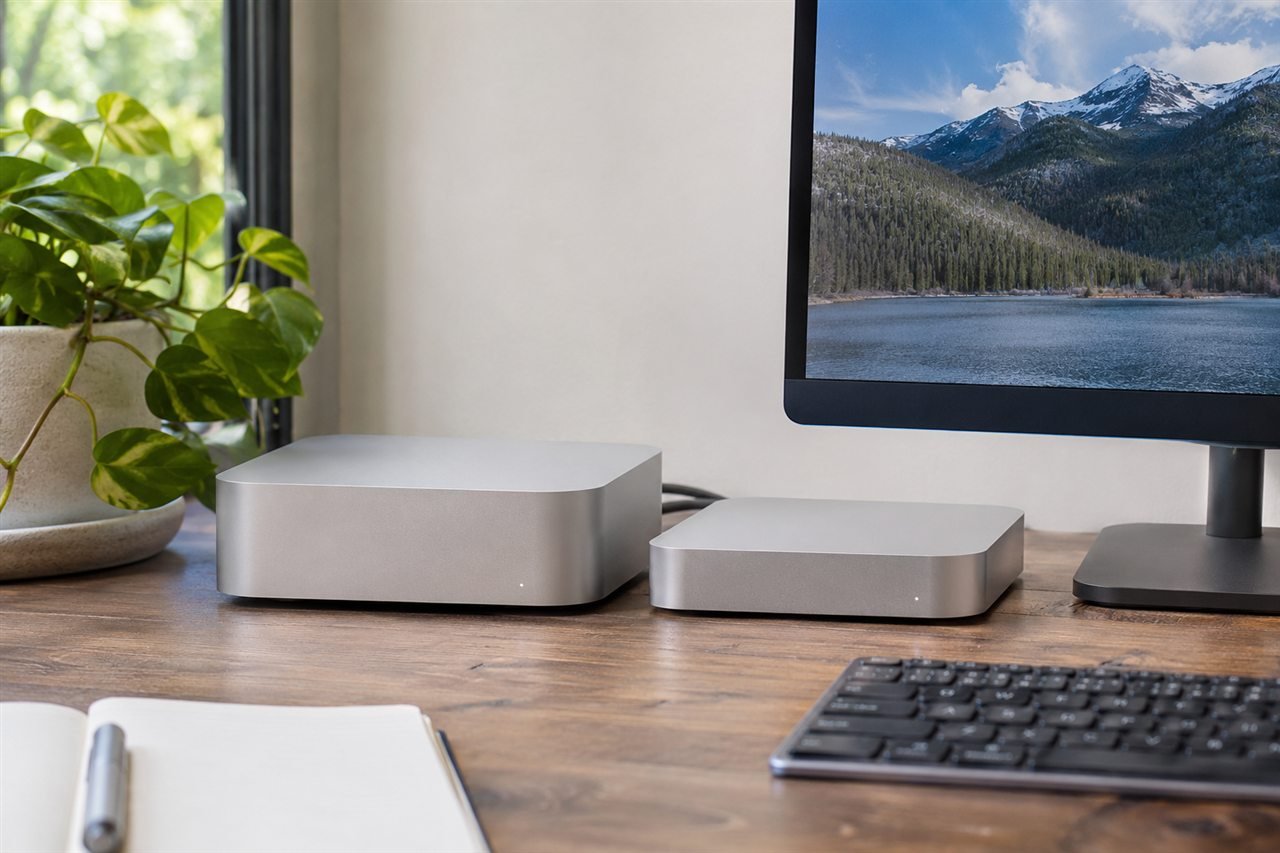
Compare the M6 Mac mini with the M5 Max and M5 Ultra Mac Studio by memory needs, ports, and the work you do every day.
Start with the four chip options
Apple’s September desktop launch put the M6 and M5 Pro in the Mac mini, and the M5 Max and M5 Ultra in the Mac Studio. The newer chip name alone says little about which computer suits a given job. Look at what limits your current system. A short everyday task, a long rendering session and a project that uses substantial memory place different demands on the machine.
A practical shortlist
For browsing, coding, office work and occasional creative projects, start with a Mac mini configuration that can hold your active files and applications. For large video timelines, graphics-heavy work or local models that must fit in memory, compare the Mac Studio configurations. Check the actual memory and connectivity options for the specific model, along with the required number and resolution of external displays.
Price the desk, too
List your monitor, keyboard, mouse, external drives and any adapter you need. Compare the cost of the complete setup, including backup storage. If your current Mac still works, open a typical large project and look in Activity Monitor at memory pressure during the slowdown. That observation can show whether a larger memory configuration deserves priority over a faster chip.
Match the machine to three common workloads
A developer who compiles occasionally may value memory for several virtual machines more than a better graphics configuration. A video editor might be limited by an external media drive or a format used on a particular timeline. Someone running a local model should make sure the model and the other apps they need fit in available memory together. Those are three distinct bottlenecks even when the work takes place on the same computer.
Calculate storage and connectivity before buying
Start with the files you actually keep on your desk computer. Separate active projects from finished work you can store elsewhere, then include room for applications and temporary files. List the displays and drives that must stay connected at the same time. A suitable dock may solve a port shortage, but compare its price and capabilities with the configuration that already has the ports you need.
Check a typical day on your current Mac
Open your normal apps and run one task that bothers you, such as exporting a long clip. Note how long the task takes, whether the machine becomes hard to use during it, and what Activity Monitor shows. This gives you a baseline to compare against independent benchmarks using a similar job. If daily work is responsive and only a rare task runs slowly, the value of a desktop upgrade may be more modest than the headline specifications suggest.
Related guide: Apple’s PROLED MacBook Pro: What the Display Update Means
Source: apple.com