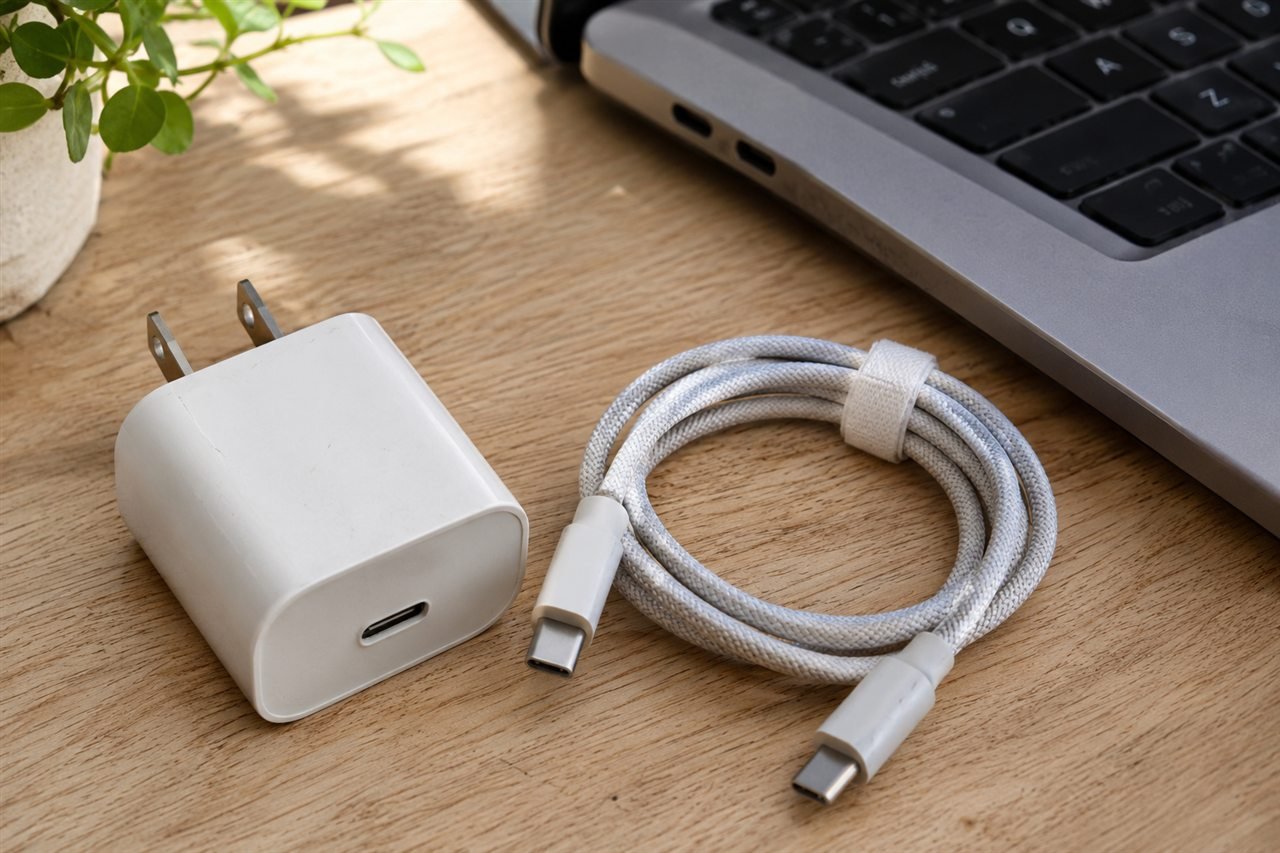
Check your laptop, charger port and USB-C cable before buying a travel charger. A high wattage on the box tells only part of the story.
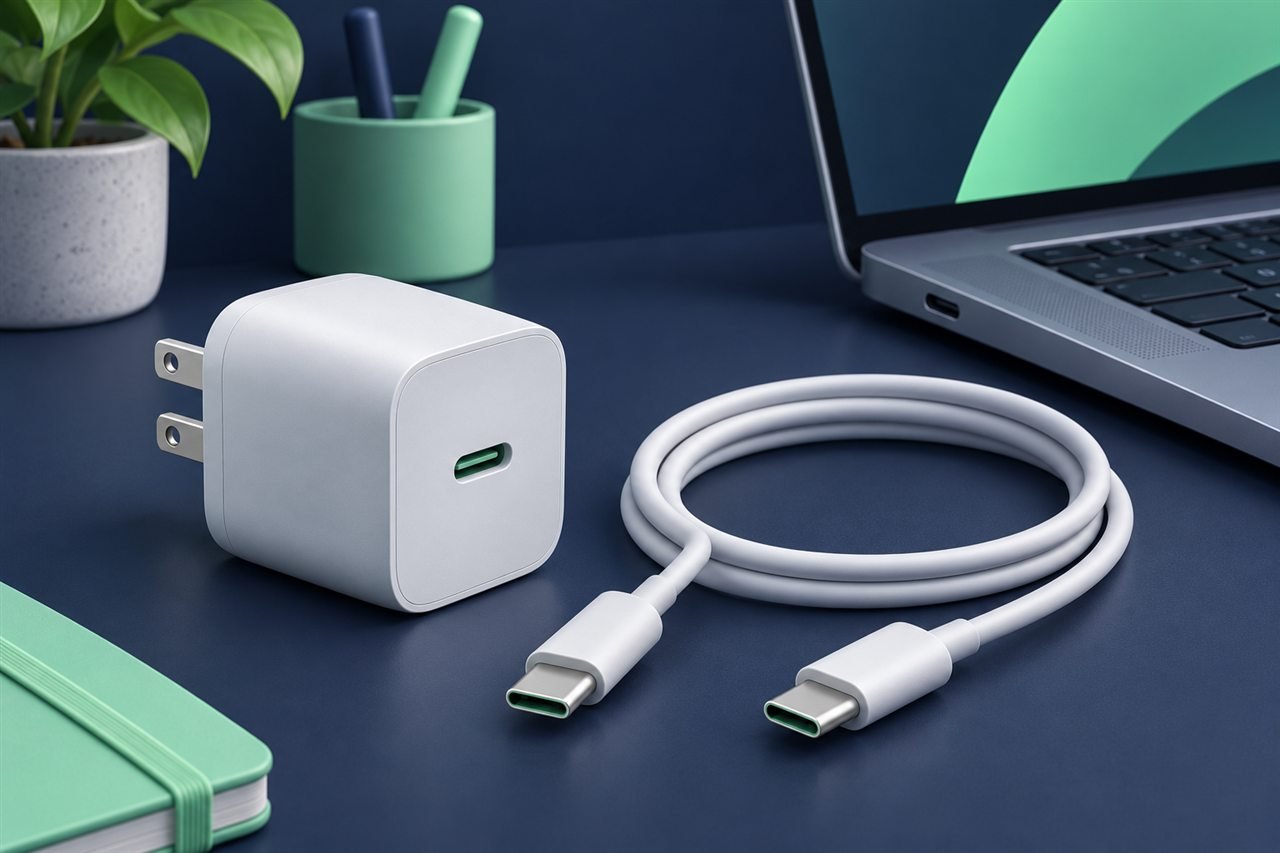
Start with the laptop specification
Find your laptop’s supported USB-C charging input and the power rating of the original adapter. A USB-C socket describes the connector shape. It does not tell you whether the laptop accepts power through that port or which power profiles it supports. For example, a charger that tops out at 65 W may maintain a charge on a 100 W laptop during light use but fall behind while the laptop is working hard.
Check the charger port and cable together
On multiport chargers, look for a table showing how power changes when more than one device is plugged in. A charger sold as 100 W may supply that figure only through one port with every other port empty. USB Power Delivery can support up to 240 W with compatible equipment. The laptop, the charger and the cable all have to support the power level you need.
Test before you travel
Plug the laptop into the port you plan to use, connect your phone to a second port, and check whether the laptop continues charging during your normal work. If you also use the cable with a monitor or external drive, verify its video or data capabilities separately. A cable with a high charging rating may still offer modest data speeds.
Interpret a multiport charger’s chart
Imagine a charger with a single-port mode of 100 W and a two-port mode of 65 W plus 30 W. The 100 W printed on the box will not describe the laptop’s power when the second device is connected. Check which physical port gets the larger share. Then compare that figure with what your laptop needs under normal use. If the adapter chart omits the combinations you need, ask the seller for the manual before relying on it on a trip.
When a cable becomes the bottleneck
Use the cable rating as a separate purchase criterion. A cable marked for charging alone may be the right choice for a wall adapter, while a cable between a laptop and dock may also need data and video support. Match all three items independently: the charger’s advertised output on your chosen port, the cable’s power and data ratings, and the laptop or dock’s required input. For a spare you will carry often, label its purpose so you do not confuse it with a look-alike cable.
Troubleshoot slow charging in a controlled order
Disconnect other devices from the charger and use the cable that came with your laptop if it is suitable for the connection. Try a port that the manual identifies as the higher-power output. Then reconnect your phone and see whether the laptop stops charging or begins draining under load. Changing one variable at a time helps identify whether the problem is shared power, the cable or the laptop’s own charging limits.
Related guide: How to Check iPhone Battery Health and Choose a Charge Limit
Source: usb.org