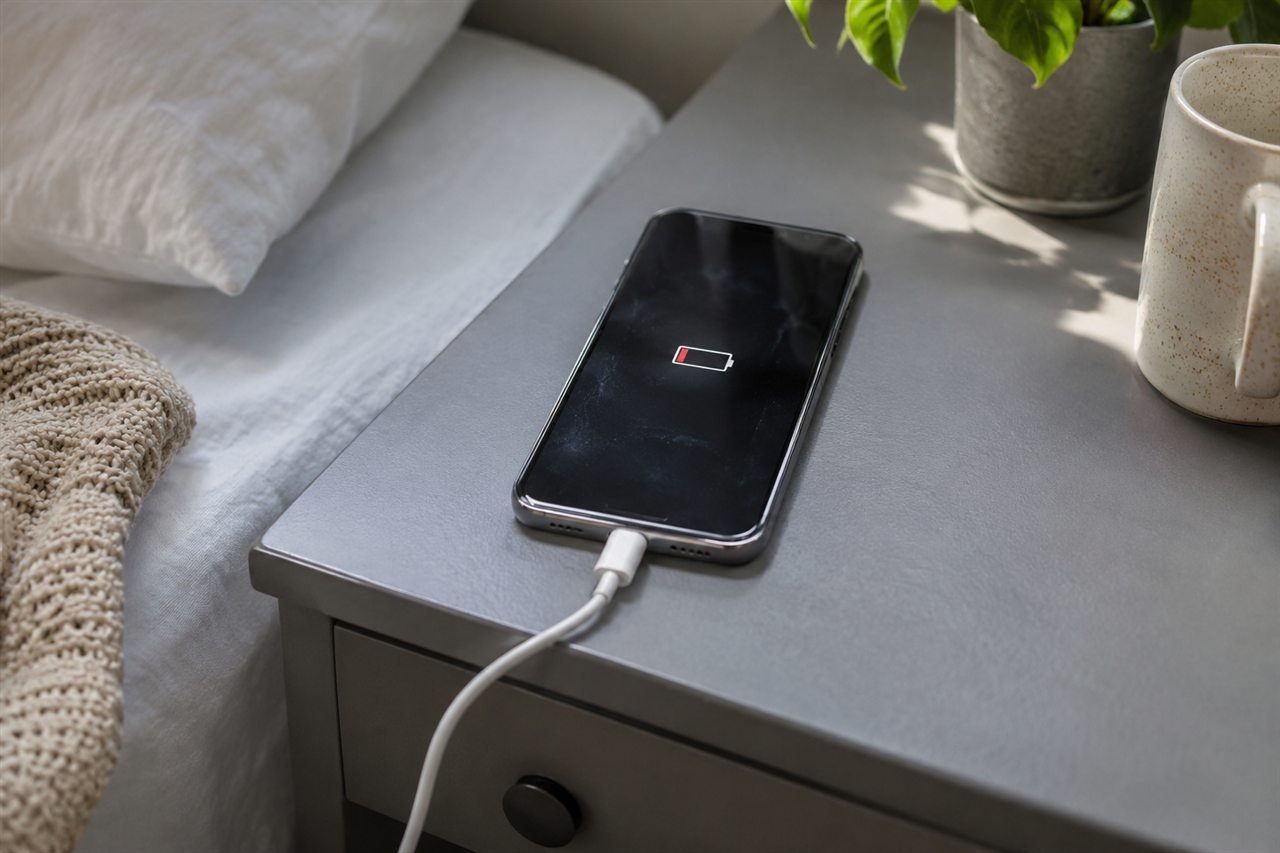
Learn what iPhone battery health shows and when a lower charge limit is worth the trade-off in daily runtime.
Find the battery information
Open Settings and go to Battery. Look for Battery Health or Battery Health & Charging, depending on your model and software version. Read the maximum capacity and any service message together. Maximum capacity describes the battery compared with its original condition. A day with rapid drain can also come from weak signal, navigation, background activity or a recently installed update.
Decide how much charge you need
iPhone 15 and later support a charge limit. A lower limit makes sense when the phone spends hours connected to power and still gets through your day comfortably. If you often spend an entire day away from a charger, a higher limit may be more practical. Optimized Battery Charging, when available and enabled for your settings, can delay the final part of charging based on your routine.
Check the pattern before replacing a battery
Look at battery usage across several ordinary days. If a single app dominates one day, see whether that matches how you used the phone. If you consistently run out of power during routine use or see a service message, check Apple’s service options for your model. Try changing one setting at a time so you can see what actually helped.
Compare charging habits with real runtime
If you work at a desk with a charger nearby, try a lower limit on a routine day and note roughly how much battery remains in the evening. Then compare that with a longer day away from home. The better setting is the one that makes the phone reliable for the schedule you actually keep. There is little benefit in choosing a limit so low that you regularly need to find a socket when travelling.
Read usage data before drawing a conclusion
Before changing a battery setting, open the Battery screen and find the longest periods of activity. Navigation, video recording and repeated calls can explain a drop on a busy day. A battery percentage after one unusually demanding day cannot establish that the battery needs servicing. If the drain recurs during a routine day, look for app activity and any system service message together.
Know when to get a service assessment
A service message or a repeated inability to finish an ordinary day is a useful reason to check Apple’s support options. If you plan to hand the phone over for service, back it up and read the service instructions for your exact device first. If the battery provides enough runtime and the main annoyance is that charging stops below 100%, check the charge limit setting before treating the behaviour as a fault.
Related guide: USB-C Laptop Chargers: How to Pick the Right Wattage and Cable
Source: support.apple.com